
Community utilities
Azeroth Survivors Addons
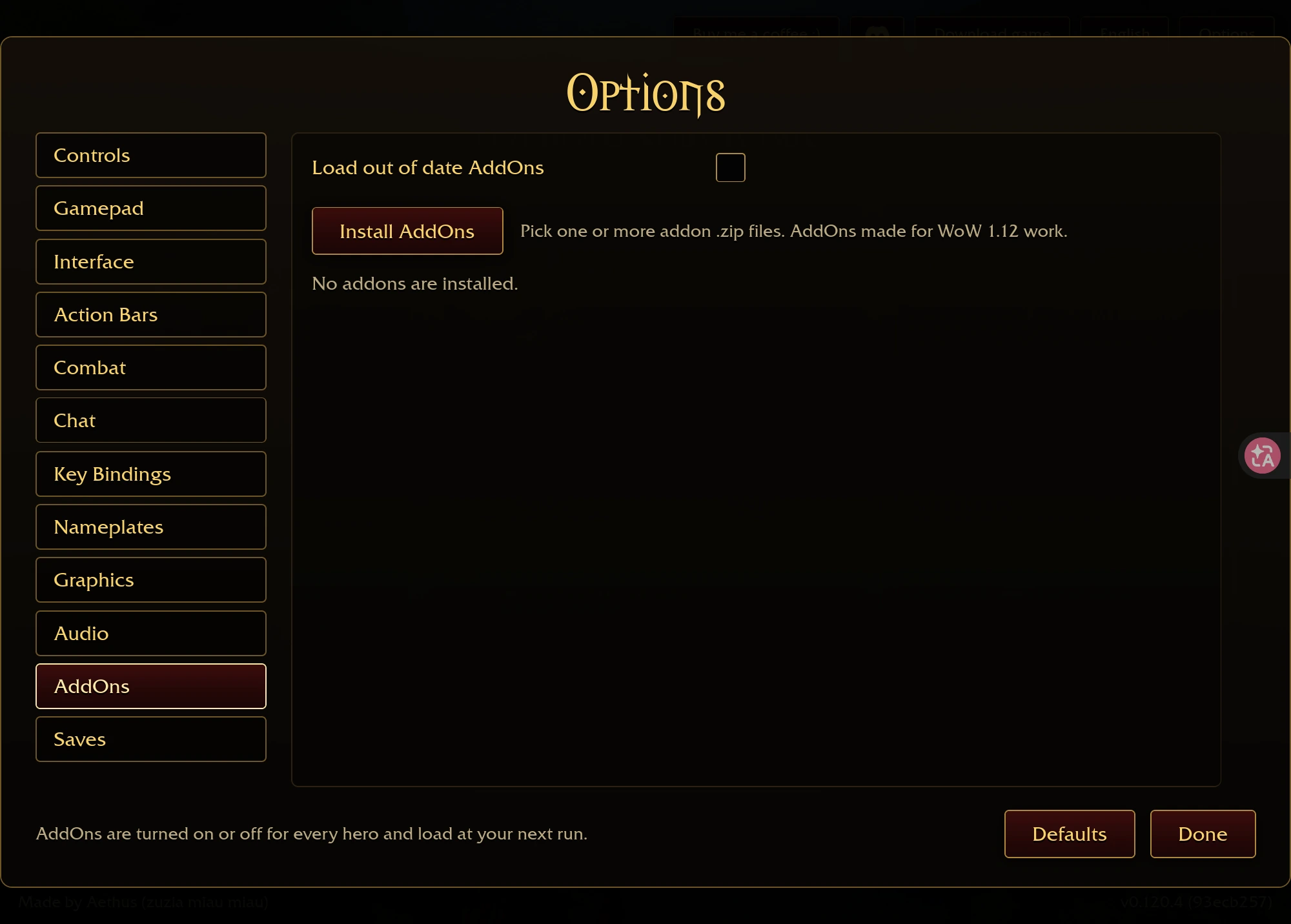
The original game has an AddOns menu. In the browser, open Options → AddOns and choose Install AddOns to select a ZIP. On Windows, use the game’s addon-folder option and follow the addon author’s installation layout. The two routes use different handling; browser instructions should not tell you to unpack files into a Windows game directory.
The browser-menu reference below is from v0.120.4, captured October 27, 2026. Addon features and compatibility come from their authors’ documentation. The listed projects were reviewed as references, not installed and tested with every game version.
Choose the tool for the question you have
| Tool | What it helps you investigate | Author-maintained source | Important boundary |
|---|---|---|---|
| AZS Spell Meter | Per-spell combat breakdown and additional statistical views | kex0/AZSSpellMeter | Its DPS window and reset commands are plugin behavior |
| Azerloot | Loot, jewelry, spell references, planning and run records | Kindagrey/Azerloot | A reference tool; its dataset was not independently recalibrated here |
| nfUI | Interface layout and additional run information | nfmous/nfui_AZSRV | Its author states that the compass does not track Battleground Caches |
If you only want the built-in combat panel, start with the crossed-swords shortcut. You do not need a third-party addon just to locate that panel.
Install a ZIP in the browser
- Obtain the intended project’s ZIP from its author-maintained page. Confirm that you are looking at an addon for this game, not a separate similarly named WoW minigame.
- In the original browser game, open Options → AddOns → Install AddOns.
- Select the ZIP. The game’s installer identifies addons through their
.tocmetadata and stores browser-installed files locally. - Check that the addon appears in the list and that the intended addon is enabled.
- Begin a new run to check its behavior. The menu says addons load at the next run; a file selection alone does not prove the addon has loaded successfully.
The original browser installer supports ZIP installation and local storage. Reinstalling an addon with the same recognized name replaces that installed copy; it does not create a second independent version to compare.
Before changing browser storage or moving to another browser, export your game save. Browser-installed addons and game progress should not be assumed to follow you automatically.
Use the desktop folder route on Windows
Holdherhand’s Addons Guide from 00:15 demonstrates the desktop menu and folder approach. The useful installation explanation continues to approximately 01:34. This is a desktop demonstration, not a demonstration of browser ZIP installation.
- Open the game’s Options → AddOns menu and use Open AddOns Folder where that desktop build provides it.
- Unpack the selected addon according to its README. Its folder and
.tocfile need the layout the author specifies. - Check for an extra archive wrapper. For an addon named
AddonName, the intended pattern is typicallyAddOns/AddonName/AddonName.toc, rather than another nested copy ofAddonName. - Restart or reload as directed by the author and check the game’s addon list.
- Verify one visible function before adding more tools. For example, open the tool with its documented command and confirm the expected window appears.
Azerloot documents /azl; nfUI documents /nfui. Those commands open their respective tools and are not universal game commands.
Clicking play connects to YouTube. Watch on YouTube ↗
When the addon does not appear or work
| What you see | Check next |
|---|---|
| The browser importer reports no recognized addon | Check the ZIP’s .toc contents and the project’s packaging instructions |
| The desktop addon is absent | Check the directory opened by the game, the extra wrapper folder and the required folder name |
| It appears but is disabled or marked out of date | Compare the addon release with your game version and read the author’s compatibility notes |
| It worked before an update | Test with the addon disabled, then check for an author update |
| A command opens nothing | Confirm that the addon loaded and that the command belongs to that project |
The Load out of date AddOns option is a compatibility choice, not proof of compatibility. The video’s blanket suggestion to enable it does not establish that every old addon will work correctly. Follow the particular project’s current guidance.
Keep native and addon statistics separate
AZS Spell Meter documents a default rolling DPS window of ten seconds and its own reset behavior. Those details cannot be assigned to the original game’s built-in Damage Done panel.
Likewise, a utility’s collection reference does not prove that an item has been earned on your save. Use the game’s Collection and Codex for your own progress, and the items guide to distinguish permanent equipment from run jewelry.
Choose addons for a specific task, check one feature at a time and keep a working save export. If the game itself stops loading, use the loading checklist before assuming the addon directory is the only cause. Return to the guide home for the rest of the progression guides.