
Play with friends
Azeroth Survivors Multiplayer: Host or Join Co-op
The original Azeroth Survivors has a Play with friends co-op menu. The inspected Host form allows 1–5 players, including the host: choose 2 for yourself and one friend, or 5 for yourself and four friends. Everyone should open the original game, compare versions and choose a hero eligible for the intended zone.
The steps below explain the menus and their error messages. They were not verified by creating a lobby or completing a multiplayer run.
Prepare the party before opening a room
Choose a class on each player's character picker, then agree on a zone. Zone progress belongs to that class; clearing a later area with Mage does not establish that a newly selected Priest can join it. Use the zone sequence to identify an earlier shared destination if needed.
Compare the game version displayed on every player's screen. If somebody has kept an old tab open, finish or leave their current activity before reloading the original page. A matching version is an admission requirement, rather than proof that the connection will succeed.
Host: create the room, then enter the zone
- Select your hero and the intended zone on the main screen.
- Open Play with friends, then Host.
- Enter a lobby name. Choose a public listing or a private room, and add a password if wanted.
- Set Max players high enough for the whole group, counting yourself.
- Choose Host the lobby. Share the resulting code and any password with the people joining.
- Wait for the expected heroes to appear in the party. Close the co-op window and enter the zone when the group is ready.
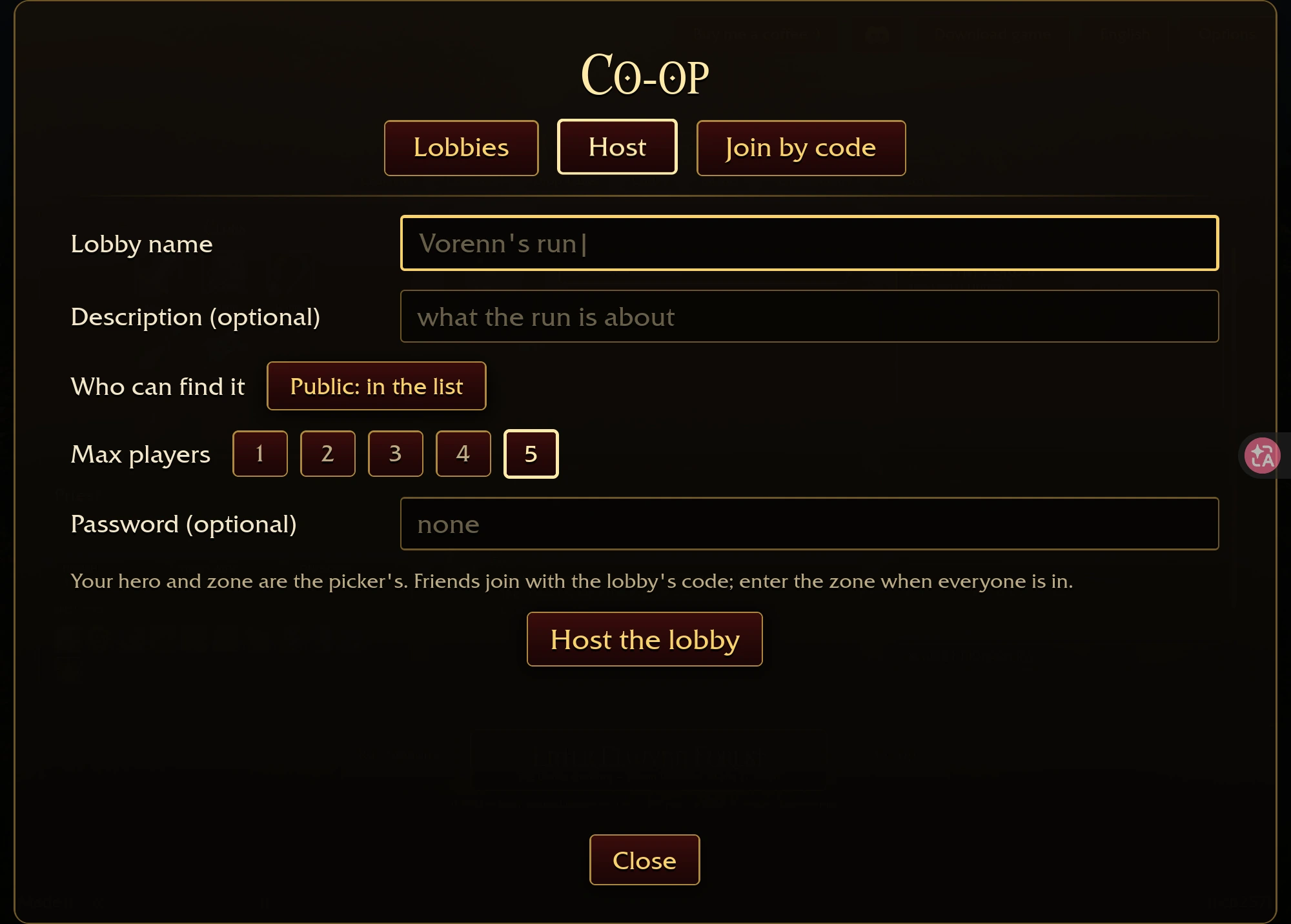
Existing original-game menu capture, October 27, 2026, v0.120.4. Opening this form did not create a room.
Check the party list before entering. A code alone does not show that a friend has joined, and the menu includes a rejection for a run already under way.
Join: choose your hero before entering the code
Open Join by code, copy the host's current code and supply the password when required. After joining, wait for the host to enter the zone. Your chosen hero goes into the host's zone.
The public lobby list offers another route. Its filters can narrow by zone, password status and zones unlocked by the selected hero. If nothing appears, loosen those filters before concluding that co-op is unavailable. An empty list can also mean nobody is currently hosting a matching room.
A useful admission signal is your hero appearing in the host's party. Starting the shared zone is a further step; this guide does not treat either menu state as a completed multiplayer clear.
Match the rejection to the next check
| Message or condition | Next action |
|---|---|
| Different game version | Compare version labels and reopen the current original page. |
| Zone not unlocked with this class | Select an eligible class or ask the host to choose an earlier zone. |
| Wrong password or no lobby with that code | Recopy the current code and confirm the password. |
| Party full | Ask the host to check the capacity, or choose another room. |
| Run under way | Wait for a new lobby opportunity before joining. |
| Too many tries | Follow the displayed waiting period before trying again. |
| Co-op needs the game's site | Open wow.aethus.pl directly. |
| Service cannot be reached | Keep the exact message and retry later; check your connection too. |
If the entire game fails before you reach these menus, follow loading troubleshooting. Lobby errors and browser graphics errors need different checks.
What to check once a teammate goes down
The documented downed prompt asks a friend to stand nearby and shows revive progress. Approach only by a route you can survive, then watch that display. This is menu-text guidance: revive duration, restored health, party scaling, shared loot and disconnect recovery were not tested here.
Before moving to another browser or client, export the existing save. Importing replaces destination progress. Keep the destination's own backup first; a lobby connection does not establish cross-device save synchronization.
Sources: original-game co-op menu reference and lobby filters and error reference. These support menu setup, not a measured group composition or successful connection guarantee.